

Do you ever wonder if an iPhone security alert is genuine or a trick? Many people get messages that seem rushed or overly urgent. Real alerts from Apple follow a clear format, but fake alerts use pop-ups and strange links to fool you. This guide shows you how to tell the difference so you can protect your personal data.
Understanding Security Alerts on iPhone
Real alerts on your iPhone come from system settings or Apple’s official apps. They warn you about software flaws, strange activity on your Apple ID, malware risks, or the need for an important system update. For example, you might see a message saying "Your device needs to update to keep your data secure." This is how Apple alerts are supposed to look.
Fake alerts, however, usually show up as pop-ups in Safari. These false warnings use scary language, repeating sounds, or countdown timers to rush you into making quick decisions. They copy Apple’s design style to seem familiar but try to trick you into paying money or sharing personal details. A fake alert might say, "Virus detected! Click now to remove threats." This is a clear warning sign.
Real alerts never ask for money right away or send you to unknown websites. They follow the standard format found in Settings > Apple ID > Password & Security. In contrast, scam alerts break these rules by including odd links or phone numbers that pretend to be from Apple Support.
Knowing the difference between real and fake alerts can help you keep your device safe. Always check the source of the alert before taking any action.
Common Types of Security Alerts and Emergency Notifications on iPhone
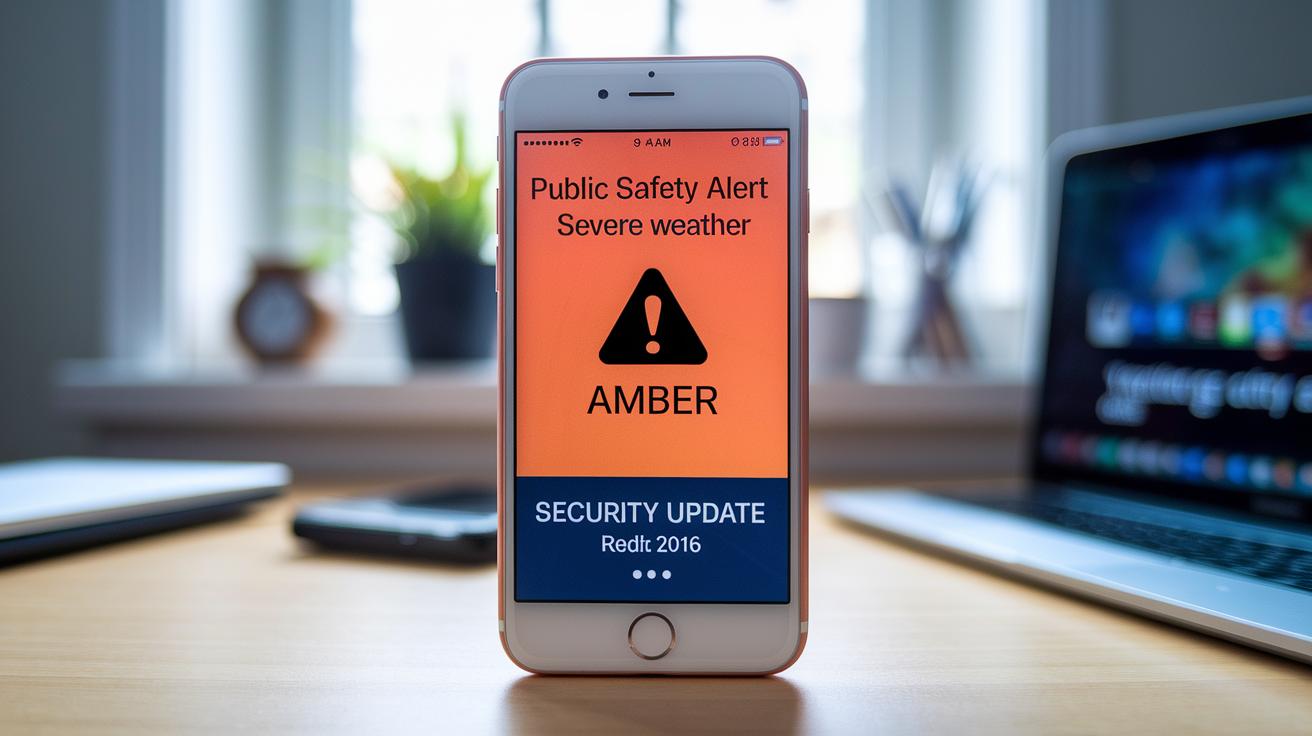
iOS sends real alerts to keep you safe and informed. These include AMBER alerts, severe weather warnings, and Exposure Logging notifications (to track virus encounters). For instance, you might see a message saying, "Your area is affected by a severe storm, please seek shelter," which is a clear public safety alert.
Apple also uses system security updates delivered via Settings > Apple ID > Password & Security. You might receive a message such as, "New security update available, tap here to update," which reminds you to check for software updates or unusual Apple ID activity using Apple’s trusted design and clear guidelines.
On the other hand, fake virus detection pop-ups try to trick you. They use aggressive language that urges you to call phone numbers pretending to be Apple Support or download uncertain software. These scam alerts often repeat warnings like, "Alert! Virus detected! Remove virus now!" to create panic and push you into unsafe actions.
Understanding the difference between real alerts and scam messages is key to staying secure. Check official settings and verify any unusual alert to prevent falling victim to fraud.
Identifying Genuine vs Fake Security Alerts on iPhone
Real alerts come through your Settings under Notifications or from Apple’s own apps. They stay on your iPhone and don’t send you away to another website. For example, a notice like "Security update available" appears normally without hurrying you into immediate action.
Scammers are getting craftier. They use short web links, urgent-sounding words, or slight design changes that stray from Apple’s usual style. Fake alerts often copy the look of official messages but include copied logos, strange web addresses, or messages demanding immediate action. These alerts aim to startle you into calling unknown phone numbers or visiting external sites.
Always check the alert’s source and details. Real alerts match Apple’s support guidelines and don’t include extra pressure to act. If you see an alert that seems off, compare it with Apple’s latest support information before doing anything.
| Indicator | Genuine Alert | Fake Alert |
|---|---|---|
| Source | Settings and official apps | Unverified pop-ups or external sites |
| Design | Standard format with clear text | Copy style with unusual details |
| Redirects | None | Often sends you to another page |
| Urgency | Neutral information | Urgent tone with strong calls to act |
Before taking any action, review all alert details in your Settings and compare them with Apple’s current support guidelines.
Configuring and Customizing Security Alert Settings on iPhone

You can control your safety notifications by adjusting your iPhone settings. This helps you see only the alerts that matter while reducing unwanted pop-ups. Start by opening the Settings app.
To change public safety alerts, tap Notifications and then Government Alerts. You can switch AMBER alerts, emergency alerts, and public safety alerts on or off. For example, if you don't want weather warnings when traveling, just turn them off with a tap.
Next, check Exposure Notifications by going to Settings and tapping Exposure Notifications. This area shows you any logged exposure events so you can review potential risks. For updates on your account security and system performance, go to Settings, tap your Apple ID, and then select Password & Security.
To lessen unwanted interruptions while browsing, open Safari in your Settings and enable Block Pop-ups. This stops intrusive notifications from unreliable websites. Many users adjust this after noticing repeated scam messages.
Review these settings regularly. By updating your alerts monthly, you ensure you only see important notifications and keep your device safe.
Troubleshooting Recurring or False Security Alerts on iPhone
If your iPhone shows unwanted security alerts, start by clearing your Safari history and website data. This step can remove fake pop-ups stored in your cache. To do this, open Settings, tap Safari, then select Clear History and Website Data.
Next, check for any apps you do not remember installing. Delete any suspicious apps that might be causing these alerts. Once you remove the apps, restart your iPhone to clear any temporary issues.
It also helps to update your device. Installing the latest iOS version, like iOS 17.4 (released in March 2024), fixes weak spots that scammers might target. Open Settings, go to General, then tap Software Update and follow the prompts.
If the false alerts keep coming, try resetting your notification settings. Go to Settings, then General, then Reset, and choose Reset All Settings. This clears any settings that may be mistakenly causing these alerts.
- Clear Safari history and website data
- Delete unknown apps and restart your iPhone
- Update to the latest iOS version
- Reset all settings if issues continue
Best Practices for Managing Security Alerts on iPhone
Combine your security guidelines with your overall alert management practices as mentioned before. Always update your iOS to take advantage of improved security features and alert systems. Adjust Safari settings by enabling the pop-up blocker and tracker controls to stop scam alerts. Remember, real alerts never ask for remote access, so never allow it if a pop-up requests this.
Choose strong, unique Apple ID passwords and turn on two-factor authentication (a method that adds an extra layer of security by requiring a second form of verification). Check your notification settings often to catch any unexpected changes and report fake alerts as previously instructed.
For example, consider this: "When Apple introduced two-factor authentication, many users saw a big drop in unauthorized access attempts."
- Update iOS regularly
- Enable Safari’s pop-up and tracker settings
- Use strong Apple ID security measures
- Check notification settings often
Final Words
In the action, the article outlined what security alerts on iphone mean and how they work. It explained the differences between genuine system messages and scam pop-ups. It also provided practical tips to customize and troubleshoot notifications.
Clear steps were shared to confirm authenticity and adjust settings, helping users keep their devices safe. Practical measures and best practices can minimize risk. Stay updated and confident when managing your iPhone’s security alerts on iphone for a safer user experience.
FAQ
How to turn off security alerts on iPhone
Turning off security alerts on an iPhone means adjusting settings in Notifications. Go to Settings > Notifications > Government Alerts and toggle off alerts, which stops non-essential alerts but not critical system warnings.
Emergency alert on iPhone today
Emergency alerts on an iPhone today are notifications like AMBER alerts or severe weather warnings delivered by government agencies to ensure user safety during crises.
How to view emergency alerts on iPhone
Viewing emergency alerts on an iPhone involves checking the Notifications section in Settings, where government or emergency alerts appear alongside other system notifications.
Turn off emergency alerts iPhone
To turn off emergency alerts on an iPhone, navigate to Settings > Notifications > Government Alerts and toggle off the alerts for AMBER, weather, and other emergency notifications.
How to disable security alerts on iPhone
Disabling security alerts on an iPhone requires checking your Settings under Apple ID > Password & Security. Note that critical system alerts will still appear to protect your device.
What are emergency alerts on iPhone
Emergency alerts on an iPhone are government-issued notifications, such as AMBER alerts or severe weather warnings, that appear automatically to help keep you informed during urgent situations.
What are Public Safety alerts on iPhone
Public Safety alerts on an iPhone are government notifications sent during emergencies like extreme weather or public warnings. They appear in your Notifications settings to keep you informed.
Turn on emergency Alerts iPhone
To turn on emergency alerts on an iPhone, visit Settings > Notifications > Government Alerts and toggle on the alerts. This ensures you receive important notifications like AMBER and severe weather warnings.
Why is my iPhone getting security alerts?
Your iPhone receives security alerts when it detects potential vulnerabilities or unusual activity in your Apple ID. These alerts help protect your device and personal data.
Is the Apple security warning real or fake?
An Apple security warning is real if it originates from official apps or Settings on your device. Fake warnings often mimic the style but request payment or personal information unlawfully.
Why is my iPhone saying all my passwords are compromised?
Your iPhone may indicate compromised passwords if it detects breaches or suspicious account activity. Check Settings > Apple ID > Password & Security for detailed alerts and recommendations.
Where do I find security alerts on my iPhone?
Security alerts on your iPhone can be found under Settings in the Notifications section or within Apple ID > Password & Security. These sections display official alerts and recommendations.


